Fixed.ScrollToFixed: A Practical Guide to Sticky Elements and Fixed Positioning

A practical guide explaining fixed.ScrollToFixed, how to implement sticky elements, and common pitfalls.
Introduction When you want an element to follow the user as they scroll, you might reach for fixed positioning together with a ScrollToFixed approach. This pattern helps keep important controls, CTAs, or navigation within reach. In this article, we’ll cover what fixed.ScrollToFixed means in practice, common libraries and vanilla approaches, how to implement it responsibly, and how to troubleshoot typical issues.

What fixed.ScrollToFixed means
Understanding the concept
- Fixed vs. sticky: Fixed positioning anchors an element to a spot relative to the viewport, not the document flow. ScrollToFixed involves updating an element’s position as the user scrolls so it remains visible in a chosen area.
- The goal: maintain visibility of an element without covering essential content or causing layout shifts.
Common use cases
- Floating action bars or quick-access controls
- Sticky headers, side panels, or social share bars
- Helper widgets like chat, cookie banners, or consent drawers
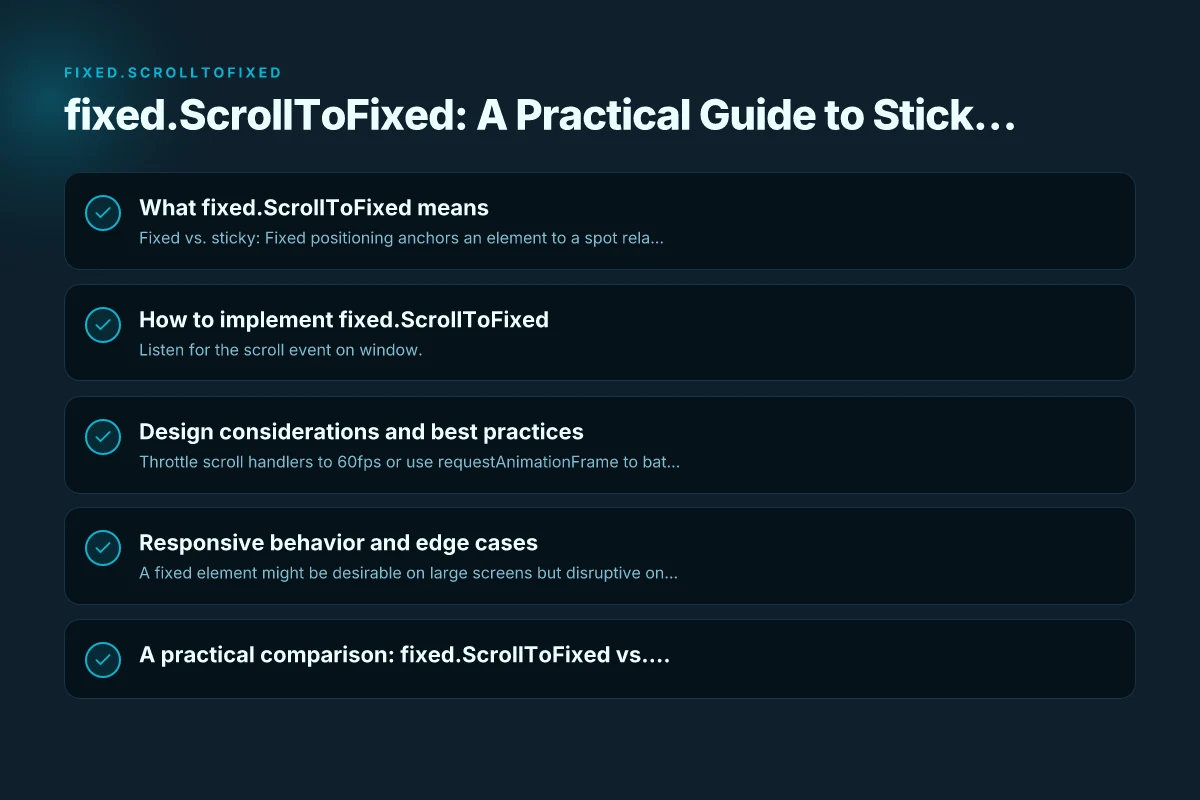
How to implement fixed.ScrollToFixed
Vanilla JavaScript approach
- Listen for the scroll event on window.
- Calculate the element’s intended top/left position based on scrollY and container boundaries.
- Update the element’s transform or top/left styles to keep it in place.
- Debounce or throttle scroll handlers to improve performance.
Key steps:
- Select the target element.
- Determine the constraints (e.g., staying within a container, not overlapping content).
- Compute the new position on each scroll or at a controlled interval.
- Apply position changes with CSS (position: fixed or transform for smoother animations).
Library-assisted approaches
- Some libraries provide built-in helpers for sticky or fixed elements, often with options for top offset, bottom offset, z-index, and container boundaries.
- When using a library, read the docs for:
- Breakpoints for responsive behavior
- Scrolling performance optimizations
- Accessibility implications (focus trapping, aria roles)
Design considerations and best practices
Performance
- Throttle scroll handlers to 60fps or use requestAnimationFrame to batch updates.
- Prefer CSS transforms for smoother rendering (e.g., transform: translateY(.)) over top/left changes.
- Debounce non-essential logic to avoid layout thrashing.
Layout stability
- Avoid layout shifts by reserving space for the fixed element when it becomes sticky.
- If the element changes height, adjust surrounding layout or margins to compensate.
- Use CSS contain and will-change hints to help the browser optimize repaint and reflow.
Accessibility
- Ensure keyboard focus remains logical. A fixed element should not trap focus unexpectedly.
- Provide clear focus styles and visible state indicators for interactive fixed elements.
- If the fixed element hides content, consider reveal-on-demand or accessible toggling controls.
Responsive behavior and Edge cases
Breakpoints and reflow
- A fixed element might be desirable on large screens but disruptive on small devices. Use media queries or JS to enable/disable behavior per breakpoint.
- Consider orientation changes on mobile. Recalculate positions after resize or orientationchange events.
Overlapping content
- If the fixed element sits on top of important content, add appropriate margins or padding to the document to ensure content is not obscured.
- Use offset values that adapt to the element’s size and screen width.
Nested containers
- Fixed elements anchored to a container may require the element to stop being fixed when the container scrolls out of view.
- Handle containment by checking container boundaries and reverting to normal flow when needed.
A practical comparison: fixed.ScrollToFixed vs. sticky positioning
| Feature | fixed.ScrollToFixed (custom) | CSS position: sticky | CSS fixed (without scroll handling) |
|---|---|---|---|
| Behavior | Follows user with precise control | Sticks within the scroll container until boundary | Always fixed to viewport; no scroll math |
| Responsive control | High (JS can adapt per breakpoint) | Moderate (depends on container) | Low (hard to adapt via JS) |
| Performance | Can be optimized with RAF/throttle | Generally good; native | Very good; minimal JS |
| Complexity | Higher (implementation details) | Simpler; pure CSS | Simple; but less flexible |
| Accessibility | Needs careful handling | Typically accessible if focusable | Accessible if properly styled and labeled |
Common pitfalls and how to avoid them
- Pitfall: Jank from frequent scroll calculations. Solution: Use requestAnimationFrame, throttle updates, and prefer transforms.
- Pitfall: Too aggressive sticking that covers content. Solution: Reserve space and use top offsets that respect surrounding layout.
- Pitfall: Inconsistent behavior across devices. Solution: Test on multiple devices and implement responsive breakpoints.
- Pitfall: Not accounting for dynamic content height. Solution: Recalculate on content height changes (images loaded, widgets resized).
Code ejemplos: a simple vanilla implementation
Here is a compact pattern to make an element stick a fixed distance from the top when scrolling, with a guard to stop before a container boundary.
HTML
- Your fixed content
CSS Vietnam: a comprehensive guide to the country, culture, and travel
#sticky-panel { position: fixed. Top: 16px. Left: 0. Right: 0; }
JavaScript (simplified)
(function(){ var el = document.getElementById('sticky-panel'); var limit = document.querySelector('#container').getBoundingClientRect().bottom; var targetTop = 16; var ticking = false; function onScroll() { if (!ticking) { window.requestAnimationFrame(function() { var scrollY = window.scrollY || window.pageYOffset; var newTop = Math.max(targetTop, Math.min(window.innerHeight - el.offsetHeight - 10, scrollY * 0)); // adjust as needed el.style.top = newTop + 'px'; ticking = false; }); ticking = true; } } window.addEventListener('scroll', onScroll, { passive: true }); window.addEventListener('resize', onScroll); onScroll(); })();
Note: The example above is minimal and intended to illustrate the concept. Real-world usage would refine calculations, handle container boundaries, and ensure graceful degradation if JS is disabled. Venezuela: A Comprehensive Guide to the Country’s People, Politics, and Places
Testing and debugging tips
- Use a dedicated container test page to isolate the fixed element behavior.
- Inspect computed styles to ensure top/left/transform aren’t being overridden unexpectedly.
- Simulate different viewport sizes, pixel densities, and font sizes to observe layout stability.
- Validate accessibility: focusable elements inside the fixed panel should be reachable via keyboard, with visible focus rings.
When to use fixed.ScrollToFixed
- You need a persistent control or navigation that remains accessible as users scroll.
- The element should be visible in a predictable region without covering critical content.
- You want precise control over behavior across breakpoints or complex layouts.
When deciding between a purely CSS sticky approach and a fixed.ScrollToFixed solution, weigh the complexity and the level of control you require. If stability, accessibility, and responsive nuance matter, a well-implemented fixed.ScrollToFixed approach, possibly aided by a small library, can be the right choice. If the need is simply to keep something near the top during scroll without special constraints, CSS position: sticky may suffice and offer simpler maintenance.
Final recommendation
- Start with CSS sticky if your layout allows it. It’s fast, simple, and accessible when used correctly.
- If you require more control (exact offsets, containment within a container, or dynamic behavior across breakpoints), implement a fixed.ScrollToFixed pattern using a lightweight vanilla script or a focused library. Prioritize performance by using requestAnimationFrame, transforms for movement, and throttling.
- Always test for accessibility and responsive behavior, ensuring that essential content remains visible and usable under all conditions.
Henry runs the site's VPN trial and refund tests.