Scroll.ScrollToFixed: A Practical Guide to Sticky Elements and Fixed Positioning

A practical guide to using Scroll.ScrollToFixed for sticky elements, with setup, best practices, and alternatives.
Introduction to Scroll.ScrollToFixed
If you’re building a page with navigation menus, sidebars, or callouts that should stay visible as users scroll, Scroll.ScrollToFixed offers a handy way to keep elements fixed within the viewport. It’s a lightweight approach that predates more modern CSS-only sticky techniques, and it’s still useful when you need broader compatibility or more granular control. This article explains what Scroll.ScrollToFixed is, how to implement it, common patterns, performance tips, and alternatives.

What Scroll.ScrollToFixed means
Scroll.ScrollToFixed refers to a pattern or plugin that makes an element “stick” to a position in the viewport as you scroll, without using position: fixed on page load. Instead, the element toggles between relative, absolute, and fixed positioning based on scroll events. The exact library or method may vary. The concept remains the same: keep an element visible at a target offset while the rest of the document scrolls.
How it differs from CSS fixed or sticky
- CSS fixed: The element is fixed relative to the viewport from the moment the page loads. It doesn’t move with the page content.
- CSS sticky: The element behaves like a normal flow element until a threshold is met, then it becomes fixed within its container.
- Scroll.ScrollToFixed style: The element becomes fixed at a certain point as you scroll, then returns to normal flow when appropriate. It often allows more precise control and fallback behavior for older browsers.
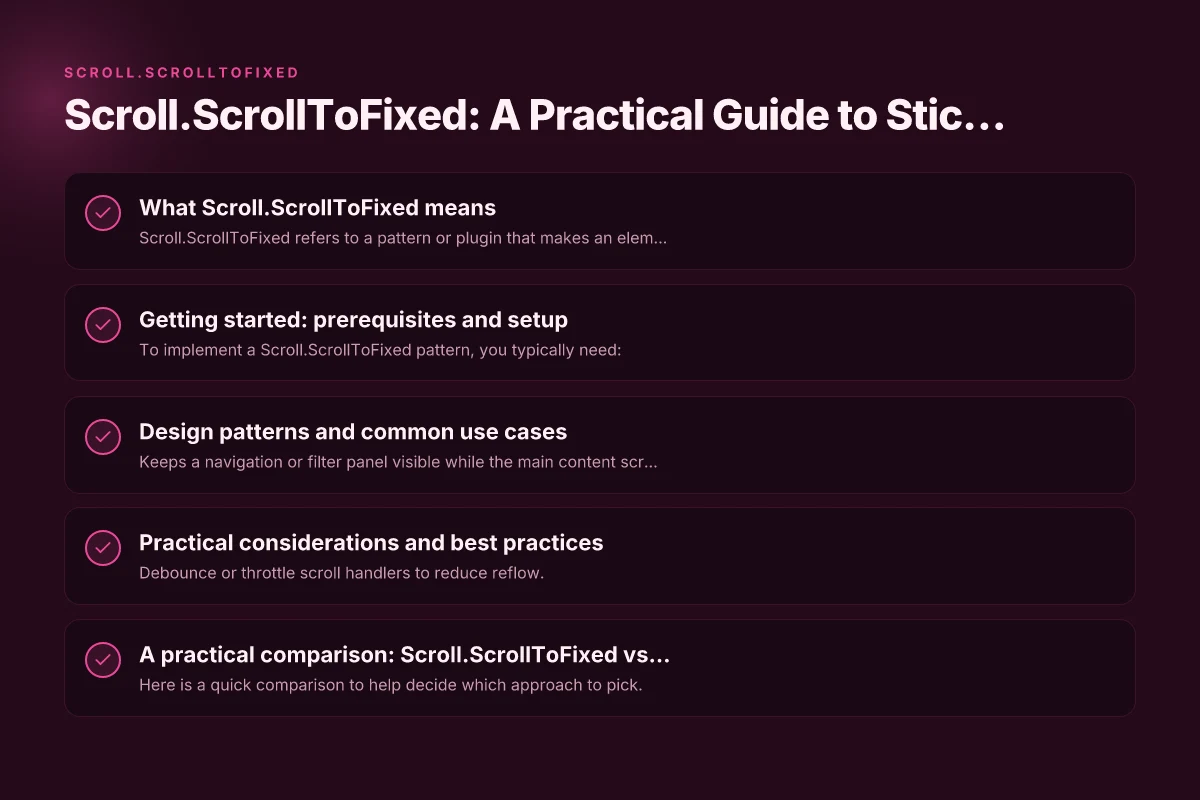
Getting started: prerequisites and setup
To implement a Scroll.ScrollToFixed pattern, you typically need:
- A page with jQuery (if the plugin is jQuery-based).
- A target element you want to fix in the viewport (e.g., a menu, ad, or widget).
- A script that binds scroll events to calculate positions and toggle fixed/absolute positioning.
A minimal setup might look like this:
- Include jQuery (and any Scroll.ScrollToFixed plugin if you’re using a plugin version).
- Add a container or wrapper around the element you want to fix.
- Initialize the behavior with a simple call, such as $(element).scrollToFixed() or equivalent.
Example pseudocode (conceptual)
- On document ready:
- Identify the target element (e.g., #sidebar).
- Determine the offset from the top where the element should start fixed positioning.
- Bind a scroll handler to calculate the current scrollTop.
- If scrollTop >= offset, apply fixed positioning with top: some value.
- If scrollTop < offset, revert to relative positioning.
Note: The exact API varies by library. Always consult the specific plugin documentation you’re using. Remove.ScrollToFixed: How to Remove the ScrollToFixed Plugin Effectively
Design patterns and common use cases
Sticky sidebar
- Keeps a navigation or filter panel visible while the main content scrolls.
- Works well when the sidebar height is shorter than the viewport.
- Consider the container’s height to avoid overlap with footer content.
Sticky header or callout
- A top bar, promo banner, or notification stays in view as users scroll.
- Ensure it doesn’t cover important content. Provide a generous offset or a dismiss option.
Sticky within a frame
- If the element sits inside a scrolling container (not the main window), you can apply the technique to that container.
- This requires calculating offsets relative to the container’s scroll position.
Practical considerations and best practices
Performance tips
- Debounce or throttle scroll handlers to reduce reflow.
- Use CSS transforms (e.g., translateY) for smoother motion if supported by the plugin.
- Limit the number of sticky elements on a page to avoid layout thrashing.
- Prefer CSS-driven sticky behavior when supported, and reserve Scroll.ScrollToFixed for complex scenarios or older browsers.
Responsiveness and breakpoints
- The offset and behavior may need to change at different viewport widths.
- Reinitialize or adjust offsets on resize events to keep alignment correct.
- Test across devices to avoid content overlap on small screens.
Overlap and z-index
- Ensure sticky elements have a z-index that places them above content but not above interactive controls in the same region.
- Check for overlap with fixed headers or footers on small screens.
Accessibility considerations
- Ensure that a sticky element does not obscure essential content or navigation.
- Provide a way to dismiss or hide sticky elements if they interfere with readability.
- Maintain focus management when the page contains dynamic changes.
A practical comparison: Scroll.ScrollToFixed vs CSS Sticky
Here is a quick comparison to help decide which approach to pick.
| Feature | Scroll.ScrollToFixed (plugin-style) | CSS Sticky (position: sticky) |
|---|---|---|
| Browser support | Wide, including older browsers with fallbacks | Modern browsers; limited on some older browsers |
| Setup complexity | Requires script initialization and calculation | Pure CSS, simpler to maintain |
| Responsiveness | Flexible with JS-based offsets | Automatically responsive based on container flow |
| Performance | May be heavier due to scroll event handling | Generally lighter; uses native layout behavior |
| Control | High control over behavior and offsets | Limited by CSS rules; easier to reason about |
Common pitfalls and how to avoid them
- Pitfalls:
- Overlapping content as a sticky element becomes fixed.
- Jumping when switching between fixed and normal states.
- Not recalculating offsets on window resize.
- Solutions:
- Reserve space in the layout for the sticky element to prevent layout shift.
- Smooth transitions or small delay when toggling states to reduce jank.
- Recalculate offsets on resize and orientation change.
Alternatives worth considering
- CSS position: sticky: A native approach that often replaces simple sticky behavior. It’s great for header bars and side panels when the layout allows it.
- Pure CSS with media queries: Combine sticky with responsive rules to adapt to breakpoints.
- IntersectionObserver-based solutions: Modern pattern for detecting when an element enters or leaves the viewport and applying styles accordingly.
- Lightweight libraries that rely on requestAnimationFrame for smoother animations.
Implementation checklist
- Define the target element and its desired fixed position (top, left, etc.).
- Decide between a JS-driven approach (Scroll.ScrollToFixed) or a CSS-only approach.
- Ensure the layout has enough space for the sticky element so content won’t jump.
- Implement proper event handling for resize and orientation changes.
- Test accessibility and keyboard navigation after applying sticky behavior.
When to choose Scroll.ScrollToFixed
- You need precise control over when and how an element becomes fixed.
- You must support older browsers or non-CSS-friendly environments.
- The sticky behavior depends on a complex interaction with other page elements (e.g., nested containers or dynamic content).
- You want to avoid layout shifts that come from using only CSS.
Final recommendation
If your project requires robust, custom sticky behavior beyond what CSS alone can confidently deliver, Scroll.ScrollToFixed is a solid choice. It offers granular control, compatibility with a broad range of browsers, and the ability to tailor the fixed behavior to exact offsets and conditions. However, for simpler sticky needs and modern browsers, prefer CSS position: sticky for its simplicity and performance. Always measure performance impacts, ensure accessibility, and test across devices. When in doubt, start with CSS sticky, then augment with a Scroll.ScrollToFixed approach for cases where you need more control or compatibility.
Henry runs the site's VPN trial and refund tests.